Snippets
Save a command once, then run it on a server with one tap. This guide covers how to write snippets and what they do when they run.
1. What a snippet is
A snippet is a shell command you save with a name. It is the command you would otherwise type in the terminal again and again: check the disk, read a log, restart a service.
A snippet is not a workflow. A workflow has several steps, a plan, checks, confirmations and a snapshot to undo. A snippet is one command (or a few lines) that runs as you wrote it, with nothing around it. If the job needs to be checked, confirmed or undone, write a recipe. If you just want your own command a tap away, write a snippet.
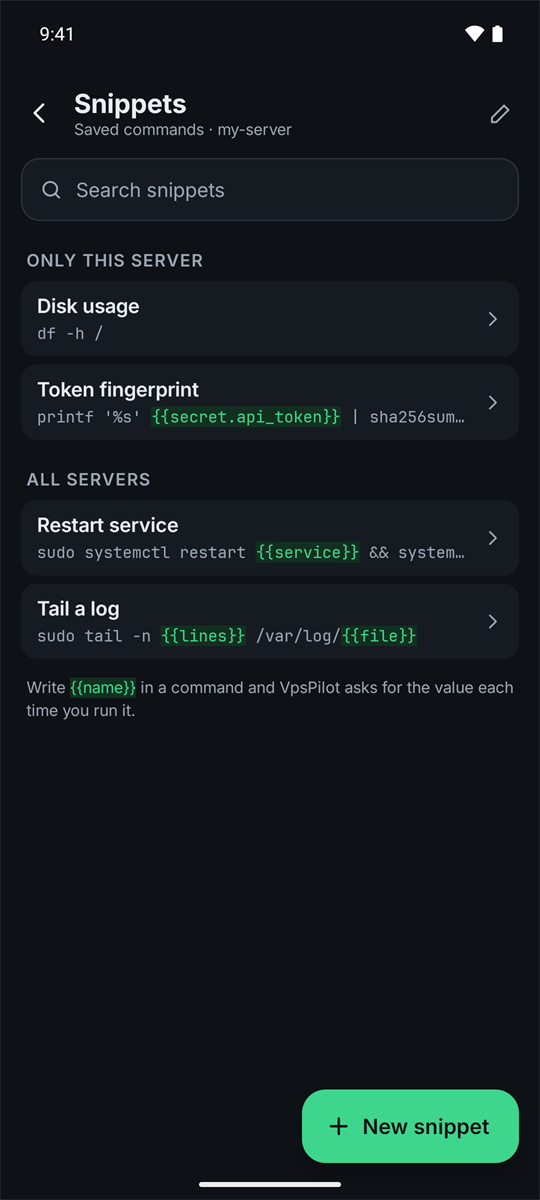
Open a server, then Snippets under Every day. Snippets are stored on your phone and are included in the encrypted app-data export (Settings then Export app data). Saved secrets are not.
2. Creating and editing a snippet
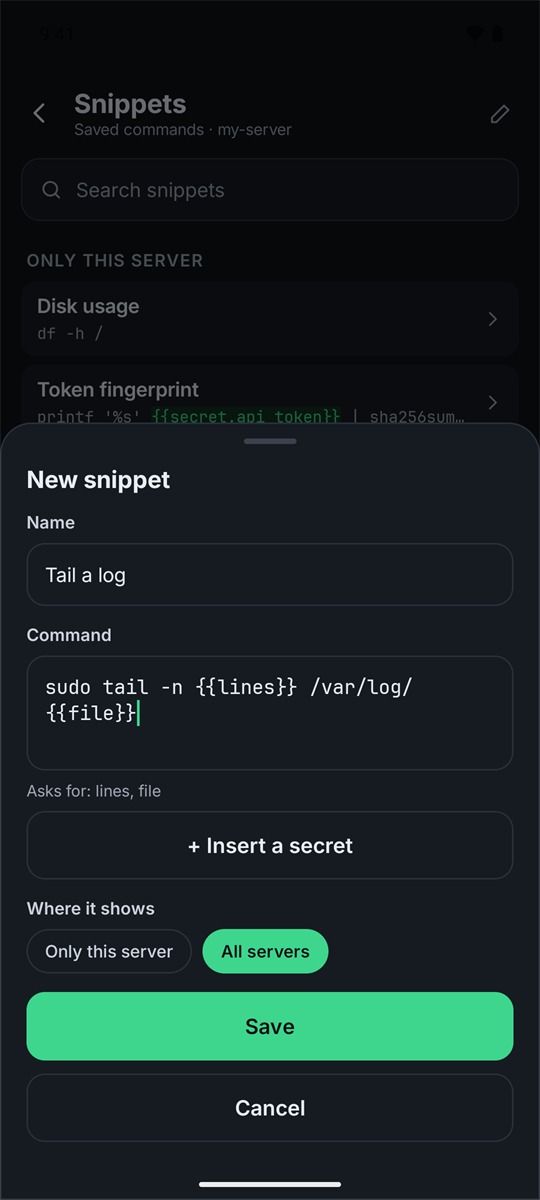
Tap New snippet. The sheet has three parts.
Name is what the list shows. It is also searched, together with the command, by the Search snippets box. Use names that say what the snippet does, such as Top folders by size.
Command is the shell command. The box grows up to 8 lines and then scrolls. It can be at most 8,000 characters.
Where it shows is either Only this server or All servers. A snippet for all servers appears in the list of every server you have added, under its own All servers heading. When you run it, the values and sudo apply to the server you opened it from.
The Save button stays off until the name and command are filled in and the command has no problems. Problems appear as red notices under the command box while you type.
To change a snippet, tap the pencil in the top corner of the list. While it is on, tapping a snippet opens it for editing instead of running it. Delete snippet is at the bottom of the edit sheet. It removes the snippet from the list and changes nothing on any server.
3. Writing the command
The command is plain shell, exactly what you would type on the server. It can have several lines, pipes, &&, loops and so on.
df -h /
du -xh --max-depth=1 /var | sort -h | tail -n 10
Where it runs depends on the button you tap (see section 6):
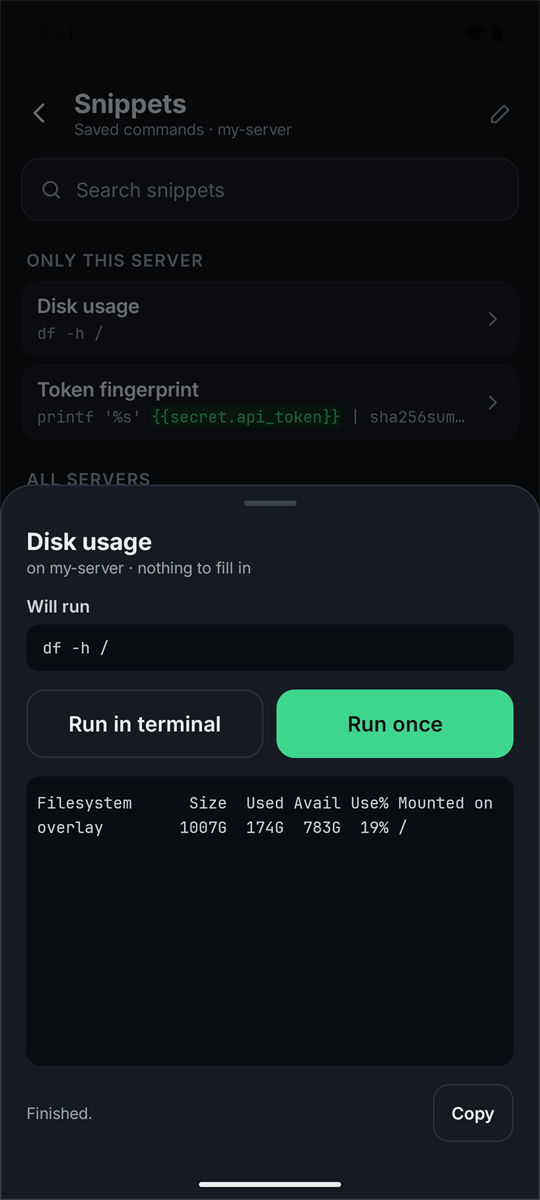
Run once sends the command to the server as a script over SSH and shows the output on the same screen. It is not interactive. Nothing can be typed into it, so a command that asks a question (apt remove without -y, for example) gets no answer. Use -y or --yes style options, or use Run in terminal.
When the command ends, the screen says Finished. for exit code 0 and Finished with an error (exit 1) (with the real number) for anything else. Error output (stderr) is drawn as error lines. Cancel stops the command on the server, and the screen says Stopped. The command was stopped on the server.
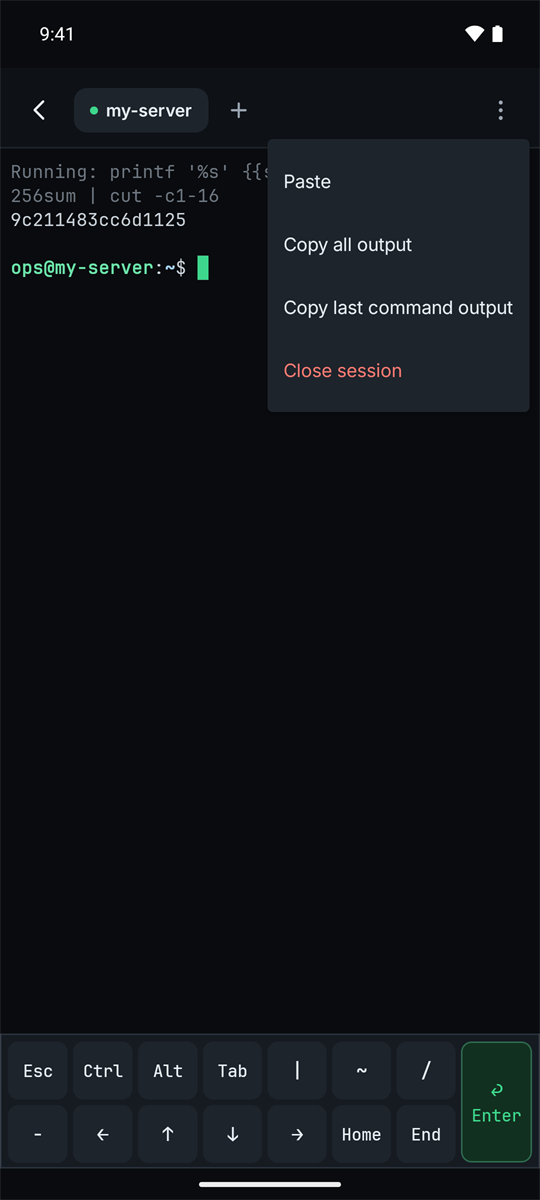
Run in terminal opens the terminal and types the command in for you. It behaves as if you had typed it, so programs that ask questions, full-screen tools like htop and anything that needs a real terminal work.
sudo
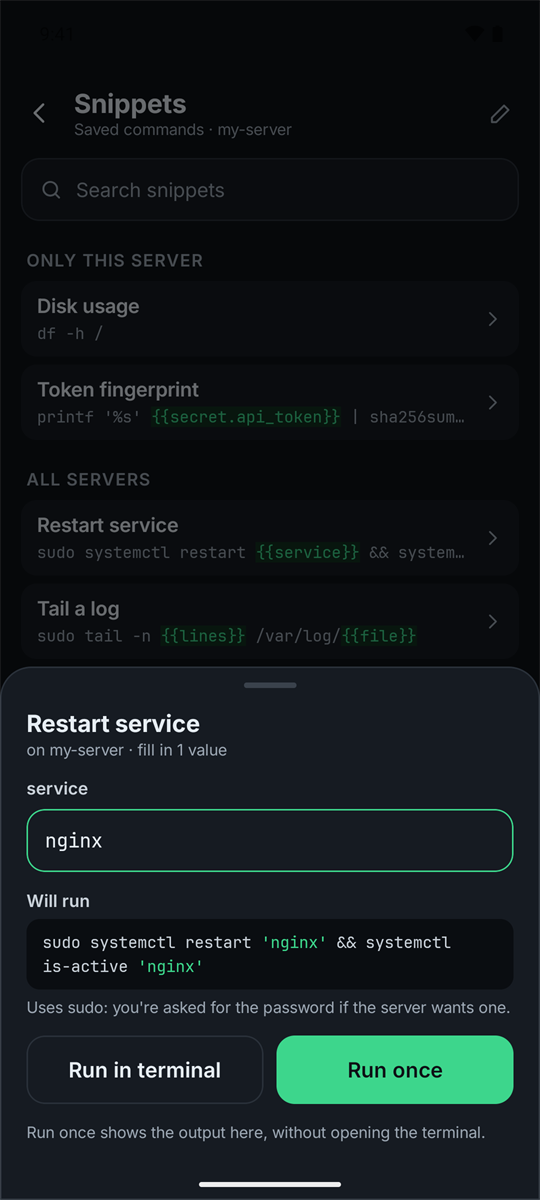
Write sudo in the command where you need it. If the snippet uses sudo, the run sheet says so: Uses sudo: you're asked for the password if the server wants one.
With Run once, VpsPilot checks how your login can use sudo. If your login needs a password, the app asks for it in a sheet before running. The password is sent to the server over the SSH connection, not in the command line, and it is hidden in the output if it ever shows up. You can choose to remember it until you disconnect. If the password is wrong, the sheet asks again and says That password was not accepted. If your login cannot use sudo at all, nothing runs and the app says (your user) cannot use sudo on this server. Use a login that can, or edit the command.
Commands that open a root shell, such as sudo -i, sudo su or sudo bash, cannot work in Run once because the shell would have nothing to read and would end at once. The app says This command opens a root shell, which needs the terminal. Use Run in terminal.
4. Placeholders
A placeholder is a name in double curly braces. Write {{name}} where a value goes, and VpsPilot asks for it each time you run the snippet.
sudo systemctl restart {{service}}
The name uses lowercase letters, digits and _, starts with a letter or _, and is up to 32 characters. While you edit, the sheet shows Asks for: service under the command. In the list, placeholders are drawn green.
When you open the snippet to run it, there is one field for each placeholder, in the order they first appear (a name used twice is asked once). Under the fields, Will run shows the final command with your values in green. This is exactly what is sent. You can select and copy that text.
Values are quoted for you
Every value is turned into one safe, quoted word. A value such as nginx; rm -rf / is passed to the command as that literal text and cannot add a second command, an argument or a redirect. Because VpsPilot does the quoting, write the placeholder without quotes:
journalctl -u {{service}} -n 100 --no-pager
A placeholder can sit inside a word, such as --vacuum-time={{days}}d. It cannot sit inside quotes, in a here-document, or right after a $ or a backslash. The editor tells you:
{{service}} is inside quotes or a here-document. Write it without quotes: VpsPilot quotes the value for you.
{{service}} cannot come right after a $ or a backslash. Put a space or other text between them.
Other messages you can meet while writing: {{Service}} is not a valid name. Use lowercase letters, digits and _ (for example {{port}})., A quote in the command is not closed., A here-document in the command is not closed. and $'...' quoting cannot be used in a command with {{placeholders}}. Use plain quotes.
Built-in values
Four names are filled in by the app and never asked: {{server.name}}, {{server.host}}, {{server.user}} and {{server.port}}. They take the values of the server you run the snippet on, which is useful in a snippet that shows for all servers. The editor lists them as server.host (automatic). Any other name that starts with server. is rejected with {{server.x}} is not known. The built-in values are ...
What the app checks when you run
Each value must pass these checks, and the run button stays off until it does:
Fill in service. (the field is empty), service is too long. (more than 1,000 characters), service must be a single line. and service must not contain control characters.
Docker and other braces
Double braces that are not a valid placeholder name are left alone, so Docker format strings still work: docker ps --format '{{.Names}}'.
Remembered values
After a snippet runs (after a successful Run once, or when Run in terminal starts), the values you typed are filled in again next time. Built-in values are never stored. Neither is any value whose placeholder name contains password, passphrase, passwd, token, secret or key: those fields are empty every time. If you want to type something sensitive each run, name it that way, for example {{db_password}}. For something you do not want to type at all, use a saved secret (next section).
5. Saved secrets
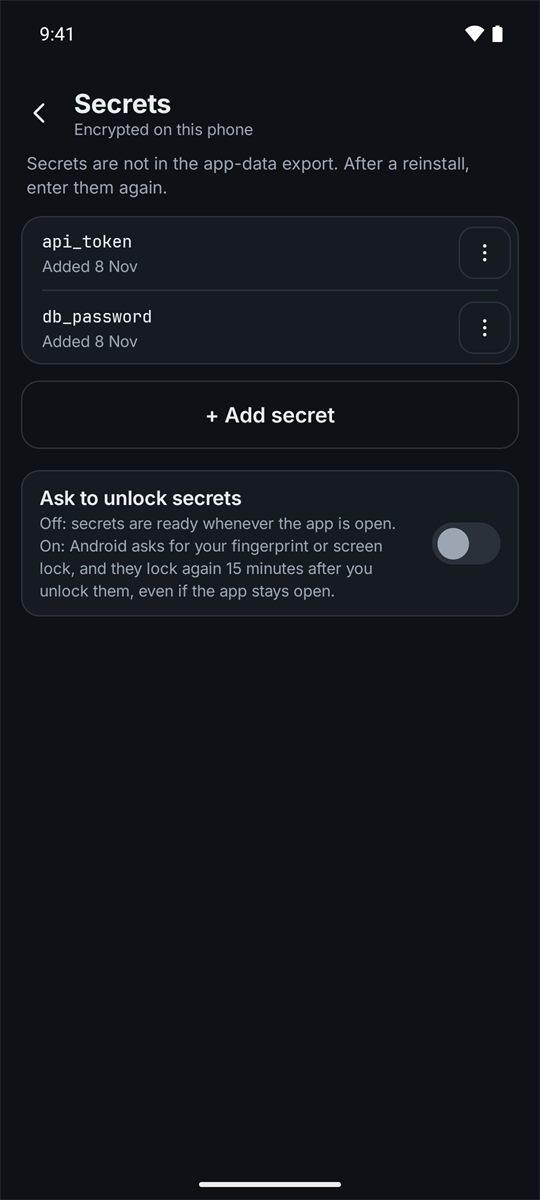
A saved secret is a value you keep encrypted on the phone and use by name, such as an API token or a webhook address. Add one under Settings then Secrets (+ Add secret). The name uses lowercase letters, digits and _, for example api_token. A saved value is never shown again; you can only Replace or Delete it.
A secret value must be a single line, with no control characters, from 4 characters to 3,000 bytes. It needs at least 4 characters so that it can be hidden in output. Multi-line values, such as a private key file, are not supported. Secrets are not part of the app-data export, so after a reinstall you enter them again.
In a snippet, write {{secret.api_token}}. In the edit sheet, + Insert a secret lists the names you saved and adds the placeholder for you. The run sheet shows a green secret: api_token chip in Will run and the line Sends secret api_token to my-server. The value is never shown. VpsPilot reads the value only when you run, after your fingerprint or screen lock if you turned on Ask to unlock secrets.
How the value is kept out of the command line, history and screen
VpsPilot never puts the value into the command text. In the command that is sent, {{secret.api_token}} becomes a shell variable (such as "$VPSP_S2"), and the value is sent separately over the SSH connection's standard input and read into that variable. So it is not in the command line, not in your shell history, and not in the snippet you saved. The sudo password uses the same path.
With Run once, if the value ever appears in the output, VpsPilot replaces it with [redacted] before showing it.
With Run in terminal, the secret is read in a new terminal tab. VpsPilot first checks the server, then hands the value over without typing it on the screen. Typing into that tab is blocked until the value has been read. After the read, the tab is cleared and shows one grey line, Running: followed by your command as you wrote it (with {{secret.api_token}}, never the value), and then the command's output. If the value shows up in the output, it is replaced by [hidden].
The variable still has to be used safely
The value is hidden until your command uses it. If you pass it as an argument, as in curl -H {{secret.api_token}} ..., then while that command runs the value is part of the curl process's arguments, and other users on the server can see it with ps. The editor warns about this: Written directly in a command, it's visible in the server's process list while the command runs.
The safe pattern is to use printf (built into the shell, so it does not make a process) to pass the value on standard input to a program that reads it from there:
printf '%s\n' {{secret.api_token}} | your-command
For curl, -H @- reads the header from standard input. This needs curl 7.55 or newer; on an older curl, use -K - to read a config line from standard input (see the webhook example below).
printf 'Authorization: Bearer %s\n' {{secret.api_token}} | curl -fsS -H @- https://example.com/api/status
Masking in the terminal is best effort. Output that comes after the run ends, or a command that changes the value before printing it (for example base64), is not covered. Do not run a command that prints a secret on purpose.
What is not allowed
A secret cannot come after sudo, doas, pkexec or su -c in the same command. Those tools write the arguments they are given to their log, so the value would end up in a log on the server. The editor rejects it:
{{secret.api_token}} comes after sudo (or doas, pkexec, su -c) in the same command, and those write the arguments they are given to their log. Pass it with printf instead: printf '%s\n' {{secret.api_token}} | your-command
A command separator (;, &&, | or a new line) starts a new command. So if the program that needs the secret also needs root, put sudo on the receiving side of the pipe, where it never sees the value as an argument: printf '%s
' {{secret.api_token}} | sudo your-command. The program reads the value from standard input.
Secrets also follow the placeholder rule: write {{secret.name}} without quotes. A secret name must be valid: {{secret.Api}} is not a valid secret name. Use lowercase letters, digits and _ (for example {{secret.api_token}}).
6. Run once or Run in terminal
The run sheet has both buttons. Choose by what the command needs.
Run once runs the command in the background over SSH and shows the output in a box on the same sheet, with the exit code at the end. Use it for commands that print something and end: df -h, docker ps, a restart, a backup. It cannot ask you questions, and it stops if you leave the screen or lose the connection. Output is capped at 1 MB. When it reaches that, the command is stopped and the screen says The output was cut at 1 MB and the command was stopped. Each line shows up to 4,000 characters. This means tail -f and other commands that never end only stop when you tap Cancel.
Run in terminal types the command into a terminal session on that server and opens it. Use it for anything interactive (a prompt, an editor, htop), for long-running commands you want to watch and scroll, and for root shells such as sudo -i. The terminal stays open afterwards, so you can carry on typing.
A snippet with saved secrets can use either button. Run in terminal has extra conditions, because it has to type into a shell. The server's login shell must be bash, zsh, sh or a similar one (not fish), the command must be at most about 3,500 bytes, and it may contain only normal characters and new lines (no tabs). Otherwise the app says what to change, for example Your login shell here is fish. Secrets in the terminal need bash, zsh or sh, so nothing was sent. Use Run once instead. or This command contains a tab or another control character, which cannot be typed into a terminal safely. Replace it with spaces, or use Run once.
Copying output
After Run once finishes, tap Copy next to the status line to copy the whole output.
In the terminal, press and hold to select text, use Select all in the selection menu, or open the terminal menu and tap Copy last command output (the output of the last command only) or Copy all output. If the screen was resized, Copy last command output can't find the output and tells you to use Copy all output.
7. Examples
Biggest folders on the disk
du -xh --max-depth=1 / 2>/dev/null | sort -h | tail -n 10
Shows the ten largest top-level folders without crossing into other file systems.
Follow a service's recent log
journalctl -u nginx -n 100 --no-pager
Prints the last 100 lines of one service's log and ends. Use sudo in front if your login cannot read the journal.
Restart a service (placeholder and sudo)
sudo systemctl restart {{service}}
systemctl status {{service}} --no-pager
Asks for service, restarts it, then prints its status. The app asks for the sudo password if the server needs one.
Show the last lines of any file
tail -n {{lines}} {{file}}
Asks for a line count and a path. Each value is quoted, so a path with spaces works.
Docker container logs
docker ps --format '{{.Names}}'
docker logs --tail {{lines}} {{container}}
Lists the container names, then prints the last lines of the one you name. The {{.Names}} is a Docker format, not a placeholder, so it is left alone.
Check a health URL from the server (built-in value)
echo Checking {{server.name}}
curl -fsS -o /dev/null -w '%{http_code}
' https://example.com/health
Prints the server's name from the app, then the HTTP status of a URL. Replace the URL with your own.
Call an API with a saved secret
printf 'Authorization: Bearer %s\n' {{secret.api_token}} |
  curl -fsS -H @- https://example.com/api/status
Sends the saved api_token as a bearer token. The value goes to curl over standard input, so it is not in the process list, the shell history or the output of Run once (where it would show as [redacted]).
Trigger a webhook kept as a secret
printf 'url = "%s"\n' {{secret.deploy_webhook}} | curl -fsS -X POST -K -
The webhook address is the secret. curl reads its settings, including the URL, from standard input with -K -.
8. Tips and limits
Keep snippets short and give each one a job. Test a new snippet with a harmless command first, since there is no undo.
Look at Will run before you tap. It is the exact text that is sent.
Use All servers for generic commands (disk, memory, updates) and Only this server for the ones that name a path or service that exists on one machine.
The limits in one place: command 8,000 characters; a value 1,000 characters on one line; a placeholder name 32 characters; a secret 4 characters to 3,000 bytes on one line; Run once output 1 MB with lines cut at 4,000 characters; a command with secrets in the terminal about 3,500 bytes.
A snippet runs on the server you opened it from, one at a time.
Snippets run with your SSH login's rights. VpsPilot does not ask you to confirm a snippet before it runs, so a command that deletes things will delete them.
9. Troubleshooting
The Save button is off
Fill in the name and the command, and read the red notice under the command box. It says which placeholder or quote to fix.
Fill in service. / service is too long. / service must be a single line.
The value is empty, longer than 1,000 characters, or has a new line or control character in it. Paste a single clean line.
This command opens a root shell, which needs the terminal. Use Run in terminal.
The command is sudo -i, sudo su or similar. Tap Run in terminal.
(your user) cannot use sudo on this server. Use a login that can, or edit the command.
The login you connect with is not allowed to use sudo. Connect as a user who can, or remove sudo from the command.
That password was not accepted.
The sudo password is wrong. Type it again in the sheet.
Secret api_token isn't saved on this phone. Add it in Settings > Secrets.
The snippet names a secret that is not saved here. This happens on a new phone, because secrets are not part of the app-data export. Add it under Settings then Secrets with the same name.
Secret api_token can't be read any more ...
The screen lock changed or the stored file is damaged. Enter the secret again in Settings then Secrets.
Your secrets stay locked until you unlock them with your fingerprint or screen lock.
You have Ask to unlock secrets on and the unlock was cancelled. Run the snippet again and unlock when asked.
A secret was not sent in the terminal
These messages mean VpsPilot stopped before it sent anything: This tab is a different user than your login, This tab is on a different server than the one you picked, The terminal did not answer in time, Could not check the server before sending the secret and The server did not answer the check in time. Nothing was sent, so it is safe to try again. If it keeps happening, use Run once.
The output was cut at 1 MB and the command was stopped.
The command printed too much. Filter it, for example with | tail -n 200 or | head -n 200.
Finished with an error (exit 97)
Exit 97 means the saved secret's input never reached the server. Try again; if it repeats, check your connection.
The snippet is gone on the new phone
Snippets move with Export app data and import. Private keys and saved secrets do not move; import or create the keys and add the secrets again.
Still stuck? See Support.