Terminal and files
The tools for working on a server by hand: a terminal, a file browser, a text editor, saved commands and port forwards.
1. Terminal and the key bar
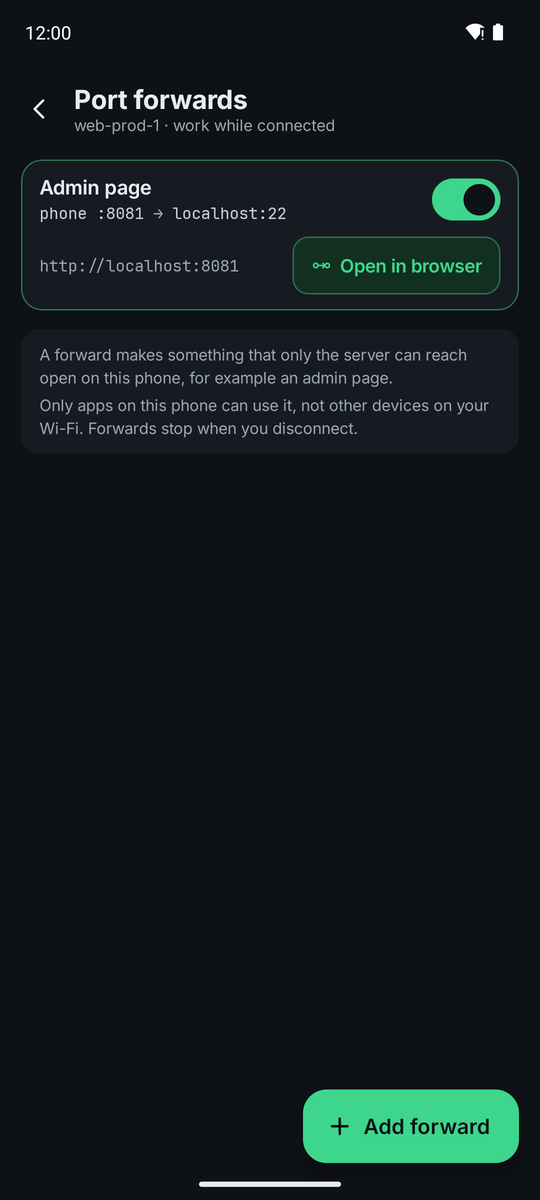
Terminal opens a shell on the server. New session opens another one, so several can be open at once. The menu has Paste, Copy all output and Close session. If a shell ends, tap New shell.
The bar under the terminal has the keys a phone keyboard lacks: Esc, Ctrl, Alt, Tab, |, ~, /, -, the arrows, Home and End. Ctrl and Alt stay on until you tap the next key. In landscape the bar is one scrolling row. Font size and Keep connection alive (stops idle disconnects) are under Settings → Terminal.
2. Files
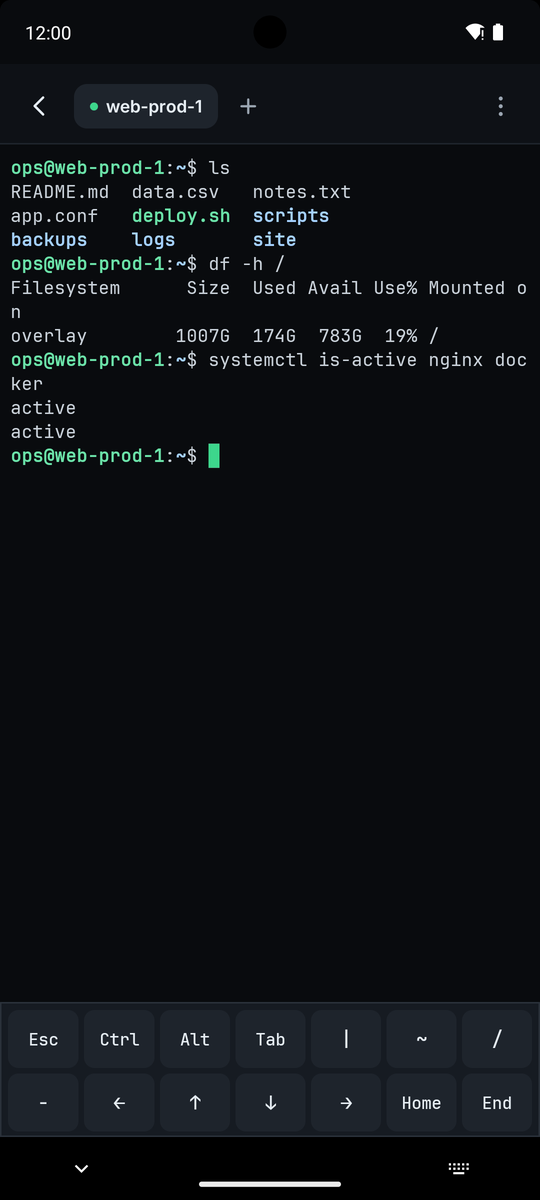
Files browses the server over SFTP. Tap a folder to open it and a text file to edit it. The menu on a file has Download to phone, Rename, Permissions (an octal mode such as 644), Copy path and Delete. Deleting a folder deletes everything inside it and cannot be undone.
Upload, New file and New folder add things. Show hidden files shows dotfiles, and Recent files takes you back to what you edited. If a name already exists you are asked before it is replaced.
3. The text editor
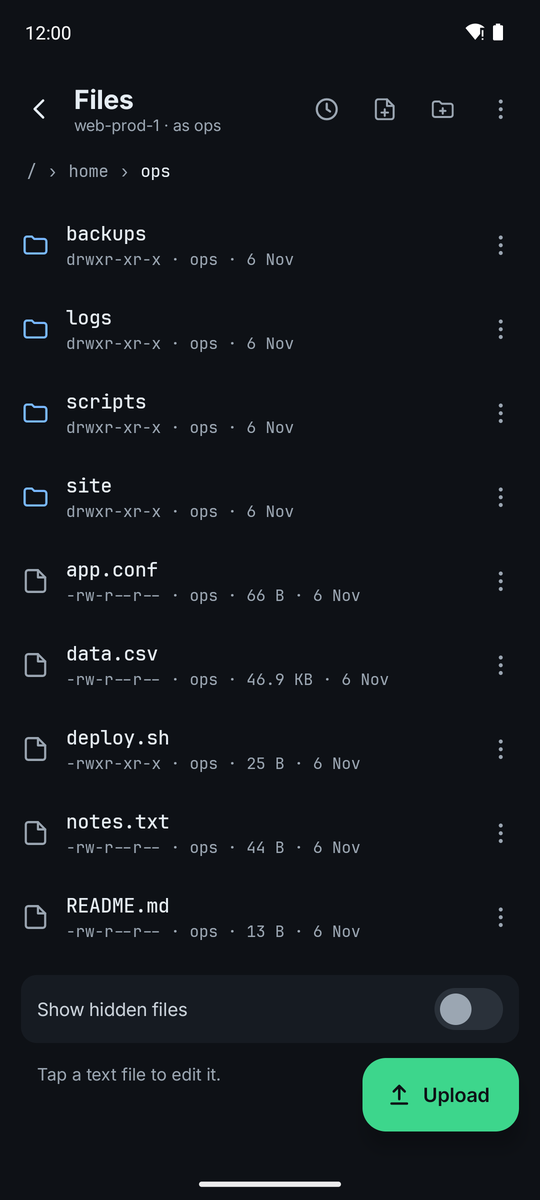
The editor has Find (with replace, match case and whole word), Go to line, Wrap and a row of extra keys for Tab, braces and the arrows.
Saving backs up the previous version first. If the file needs root, the editor offers Save with sudo. For known configuration files it then runs the file's own check: nginx -t for nginx, fail2ban-client -t for fail2ban, sshd -t for sshd, findmnt --verify for fstab and systemctl daemon-reload for systemd units. Only when the check passes does it offer to reload the service. If the check fails, fix the file or tap Restore backup.
A mistake in the SSH daemon's settings can lock you out, so the editor warns you. After the reload it tries a fresh login with your key, and Restore backup puts the old file back if that login fails.
4. Snippets
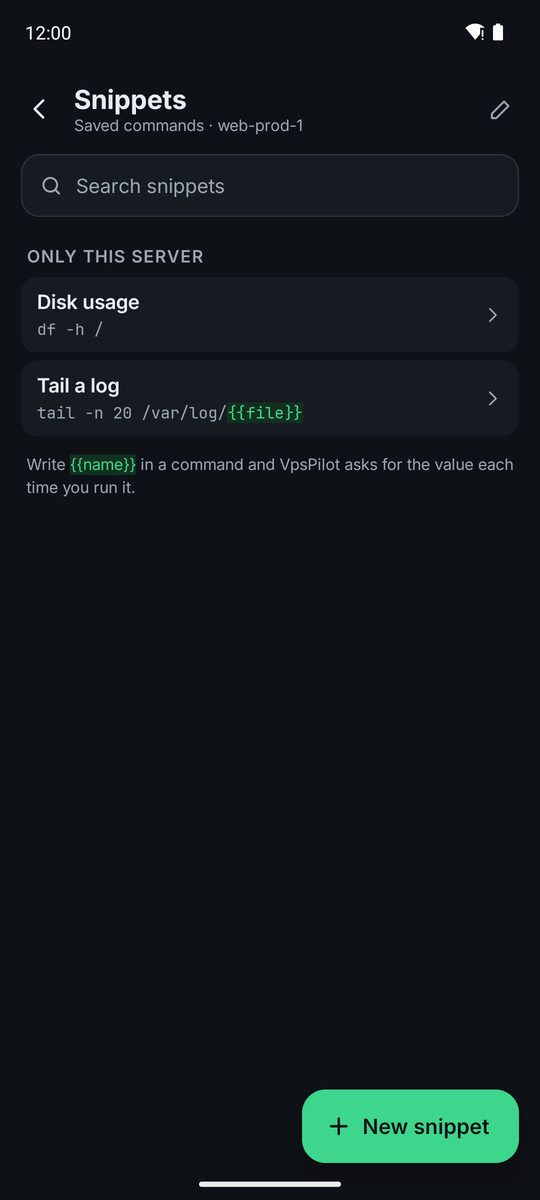
Snippets are commands you save and run with one tap. A snippet is for Only this server or All servers. Write {{name}} where a value goes, for example {{port}}, without quotes. The app asks for the value and quotes it safely.
Run once shows the output on the same screen. Run in terminal sends the command to a terminal session. A command that opens a root shell needs the terminal.
Saved secrets (coming in a future update)
This isn't in the app yet. This section describes what we plan to build, and the details may change before it ships.
You'll save a secret once, such as a webhook address or an API token, and use it by name in snippets and recipes. It will be encrypted on your phone with a key held in Android Keystore, and it unlocks with your biometrics or screen lock once while the app stays open, with an option to ask every time. A saved value is never shown again.
Secrets stay out of the encrypted app-data export, so after a reinstall you enter them again.
Using a secret in a snippet
The simple way is to write {{secret.name}} in the command:
curl -fsS -X POST {{secret.portainer_webhook}}
The app shows the name, not the value, but while this command runs, the value is on its command line, where other users of that server may see it in the process list.
Keeping a secret off the command line
To keep it hidden, pass the value with printf into a program that reads from standard input. printf is built into the shell, so the value never appears in the process list:
printf 'url = "%s"\n' {{secret.portainer_webhook}} | curl -fsS -X POST -K -
Commands that use a secret will run with Run once, not Run in terminal, so the value isn't written to a terminal session or your shell history.
Using a secret in a recipe
Recipes will follow the rule they already have for password inputs: a secret may only be a printf argument in run.
steps:
  - id: deploy
    name: Trigger the deploy
    run: |
      printf 'Authorization: Bearer %s\n' {{secret.api_token}} |
        curl -fsS -X POST -H @- https://example.com/api/deploy
The name also won't be accepted in a check, preview, guard, name, message or step output, because those can appear on screen. The recipe file holds only the name, so you can share it safely.
Until then
Keep the secret in a file on the server that only your account can read. Create it with install -m 600 /dev/null ~/.portainer-webhook, add the line url = "https://your-portainer/api/webhooks/YOUR-ID" in the text editor, then save this snippet:
curl -fsS -X POST -K ~/.portainer-webhook
In a snippet, don't use key, token, secret or password in a placeholder's name unless you want to type the value every time: those values are never saved.
5. Port forwards
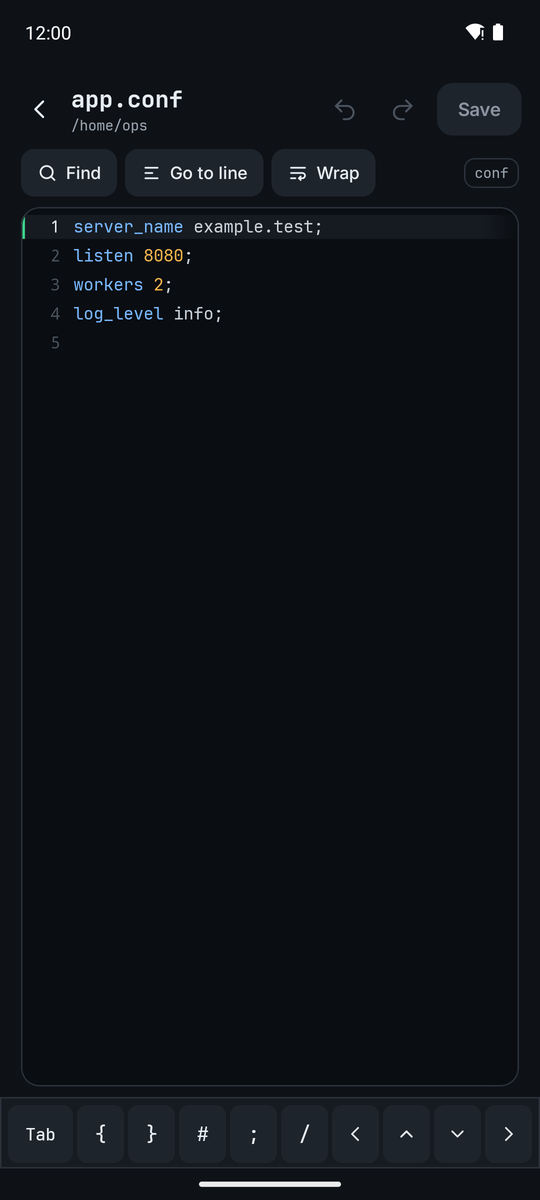
A forward makes something that only the server can reach open on this phone, for example an admin page that listens on localhost. Tap Add forward, give it a name, choose a Port on this phone (1024 to 65535), and say what to connect to as seen from the server. localhost means the server itself.
Turn on It's a web page to get an Open in browser button. Only apps on this phone can use a forward, not other devices on your Wi-Fi, and forwards stop when you disconnect.