Services and Docker
See what a server is doing, restart what has stopped, and read the logs, all from the phone.
1. Dashboard
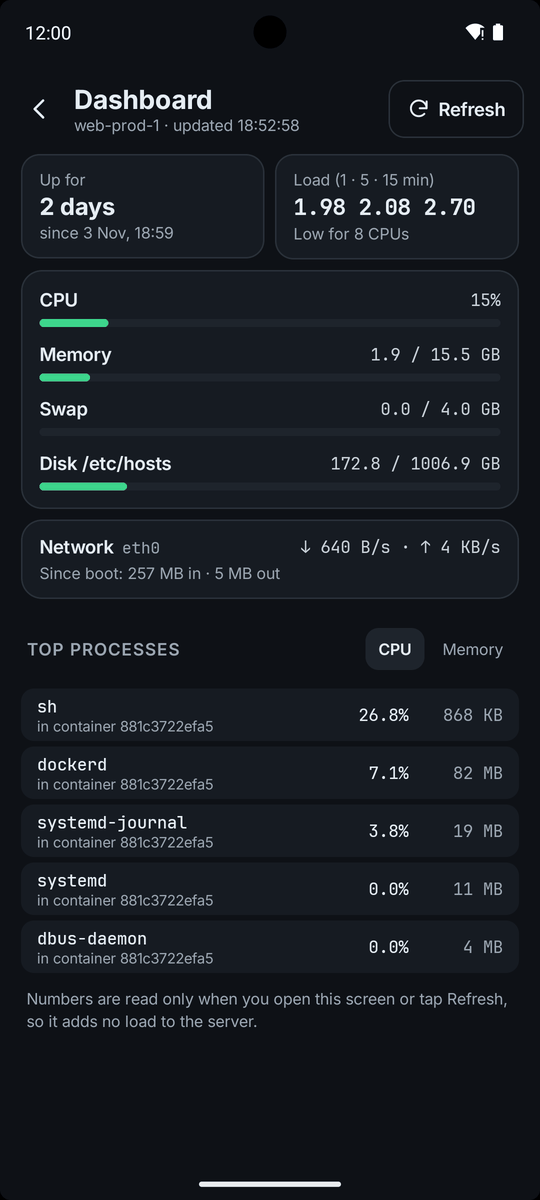
Dashboard shows how the server is doing: how long it has been up, load (1, 5 and 15 minutes), CPU, memory, swap, disk use for each mount, network speed, and the top processes, which you can sort by CPU or memory. A disk over the warning level is marked Almost full, and a server with no swap offers Add swap.
The numbers are read when you open the screen or tap Refresh.
2. Services
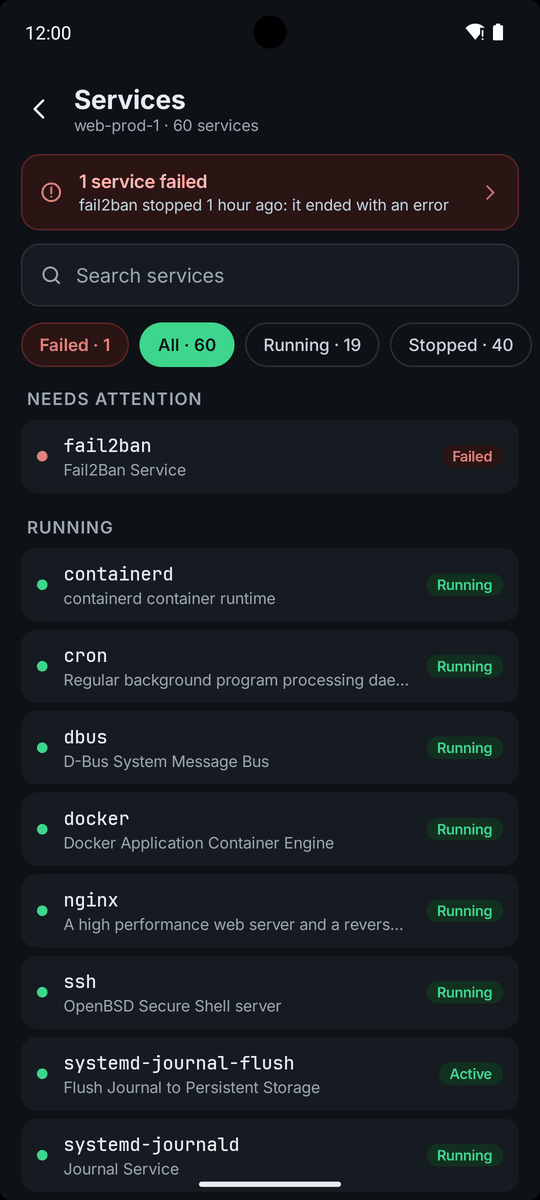
Services lists the systemd services on the server, grouped as Needs attention, Running and Stopped. Use the search box to find one.
Open a service to Start, Restart or Stop it, or to turn Start at boot on or off. Stop and the boot switch ask first and show the command. The page also shows its main process, memory, how often the system restarted it, its unit file and its recent logs.
3. Logs
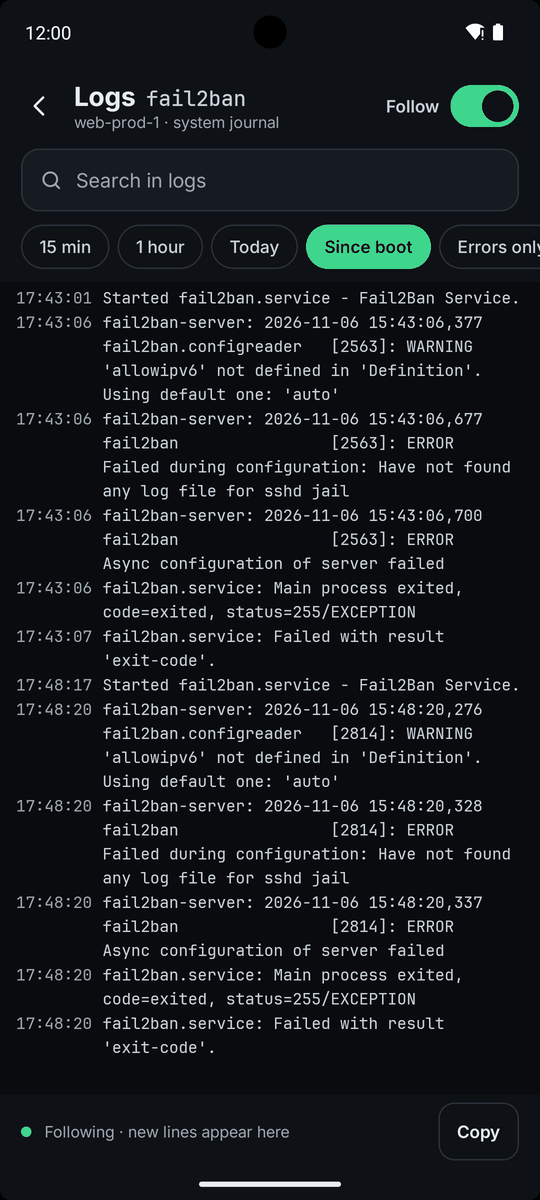
Open logs on a service reads its journal. Choose a time range (15 min, 1 hour, Today, Since boot), search the text, or turn on Errors only. Follow keeps adding new lines as they arrive.
If your login cannot read every line, the screen says so and offers Read with sudo. Container logs use the same screen with ranges of 15 min, 1 hour, 24 hours and All, and without the errors filter.
4. Containers
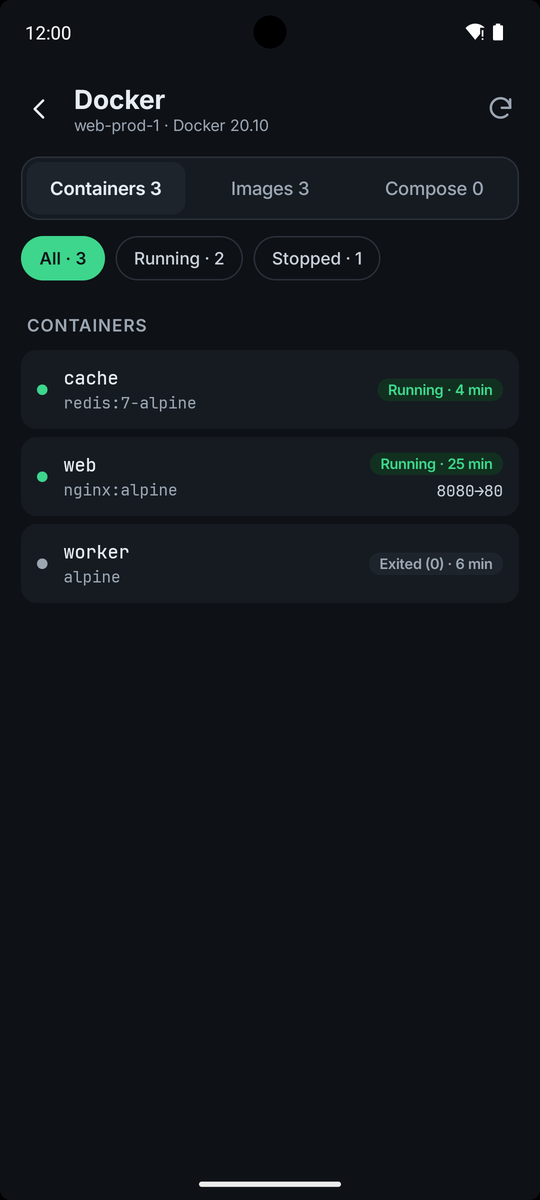
Docker has three tabs: Containers, Images and Compose. A container's page shows its image, when it was created, restarts, network, folder and published ports, with Restart and Stop (a stopped container shows Start) and its recent logs. Each published TCP port has an Open on phone button.
If Docker is not installed, the screen offers Set up Docker, which opens the Docker workflow. VpsPilot supports Docker Engine, not Podman. If your login is not in the docker group it offers to run the Docker commands with sudo.
5. Images and Compose
The Images tab marks each image In use or Not used. You can remove unused images, or one image at a time. An image that a container uses cannot be removed until the container is. Docker can download a removed image again.
The Compose tab lists projects, found from running containers and from compose files under /srv and /opt. Up starts a project. Down stops and removes its containers; data in volumes is kept. Both need Docker Compose on the server.
6. Docker Swarm
Swarm is handled by workflows, not by a screen of its own. Create a swarm makes the server the first manager and shows the join tokens. Join a swarm adds it as a worker or a manager. Leave a swarm takes it out, with a warning if it is a manager. Swarm status shows nodes, managers, quorum and services. Manage a swarm node promotes, demotes, drains or activates a node, or removes one that is down. Install Portainer adds a web panel for Docker on one server or on a swarm.