Backups and schedules
Backups are only useful if you can restore them. This guide covers making them, checking them and running jobs on a timer.
1. Make a backup
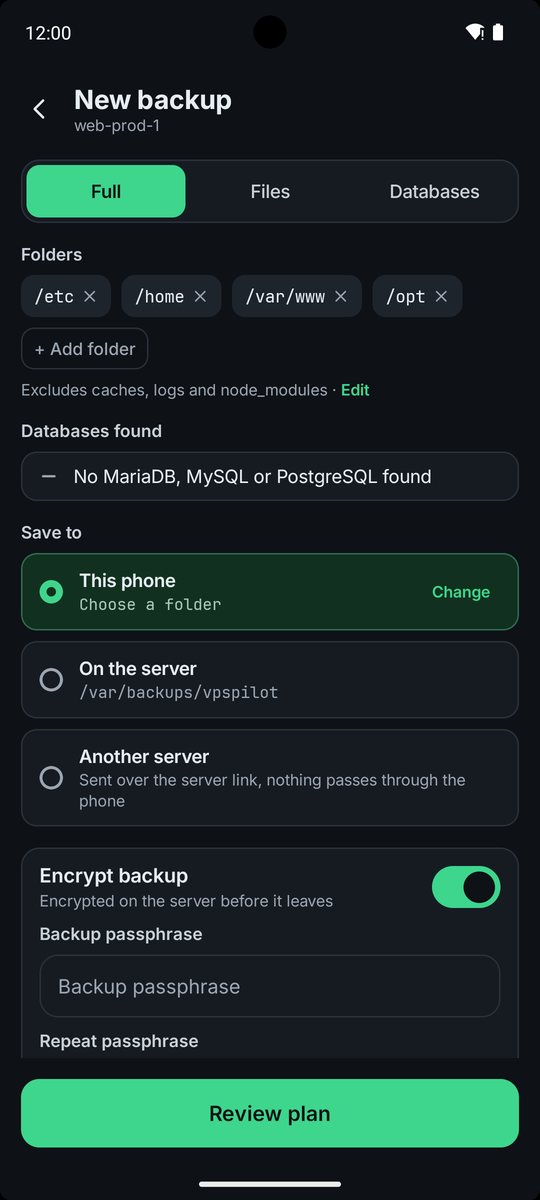
Open Backups and tap New backup. Add the folders to include, and use the skip patterns to leave out things like node_modules or *.log. Databases are found automatically (MariaDB, MySQL, PostgreSQL) and you choose which to include.
Choose where it goes: This phone, On the server, or Another server. Server copies are kept in /var/backups/vpspilot, or in /var/backups/vpspilot/from-<server> on another server.
Encrypt backup encrypts the archive on the server before it leaves. The passphrase needs at least 8 characters. For a one-off backup it is not saved anywhere. A scheduled backup stores it on the server, readable only by root. Without it the backup cannot be restored. An unencrypted backup can be read by anyone who gets the file, including passwords in config files.
2. Your backups
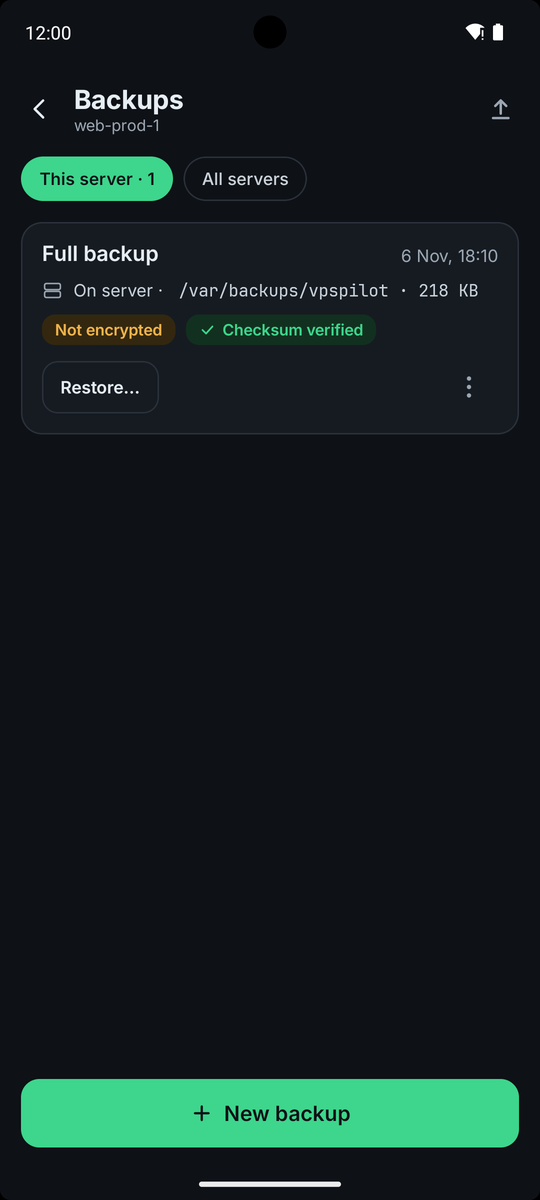
Backups lists the backups you made on any server, with where each copy is (phone or server) and whether it is encrypted. For a backup you can Download to phone, Verify checksum against the recorded value, or delete it. A copy that does not match its checksum is reported as damaged or changed.
3. Restore
Open a backup and tap Restore, or use Restore from a file for a file on the phone or the server. Enter the passphrase if the backup is encrypted. VpsPilot checks the file and the passphrase first and changes nothing yet.
The Restore preview then shows what will change: files, databases that will be replaced, packages, user accounts, and services and cron jobs. Files that would be overwritten are first copied to /var/backups/vpspilot/pre-restore, and current databases are dumped there when the app can reach them. There is no one-tap undo: putting them back is manual. Added packages and accounts stay. Nothing happens until you confirm.
4. Test a restore
A backup you have never restored is a guess. The Test a backup restore workflow checks a backup file from end to end without touching live data. It verifies the checksum, decrypts a copy, lists and unpacks the archive into a temporary folder, compares it with the manifest and checks the database dumps. With Load database dumps into a throwaway Docker container it also proves the dumps load, which needs Docker. The temporary data is removed at the end.
Give it a folder on a disk with room for about five times the size of the backup.
5. Between servers
Workflows → Between servers has three tools. Link servers lets one server log in to another with a key of its own, so data can go straight between them. Your phone's key is never copied. The File transfers only option limits that key to receiving files. Leave it on unless you need more. Without it, the first server gets root access on the other, so anyone who takes over the first server can take over the second.
Transfer files copies folders from this server to a linked one. Nothing passes through your phone. You can keep owners and permissions, or mirror the folder, which deletes extra files on the other side. The plan shows a dry run of what would be copied or deleted.
Migrate server moves sites, databases, accounts, cron jobs and services to a linked server. Databases are found and dumped, missing packages are installed on the new server and none are removed, and accounts are created by name. The new server's SSH and firewall settings and the key this app uses are not touched. Everything is checked on the new server at the end, and the app tells you what to do about DNS.
6. Schedules
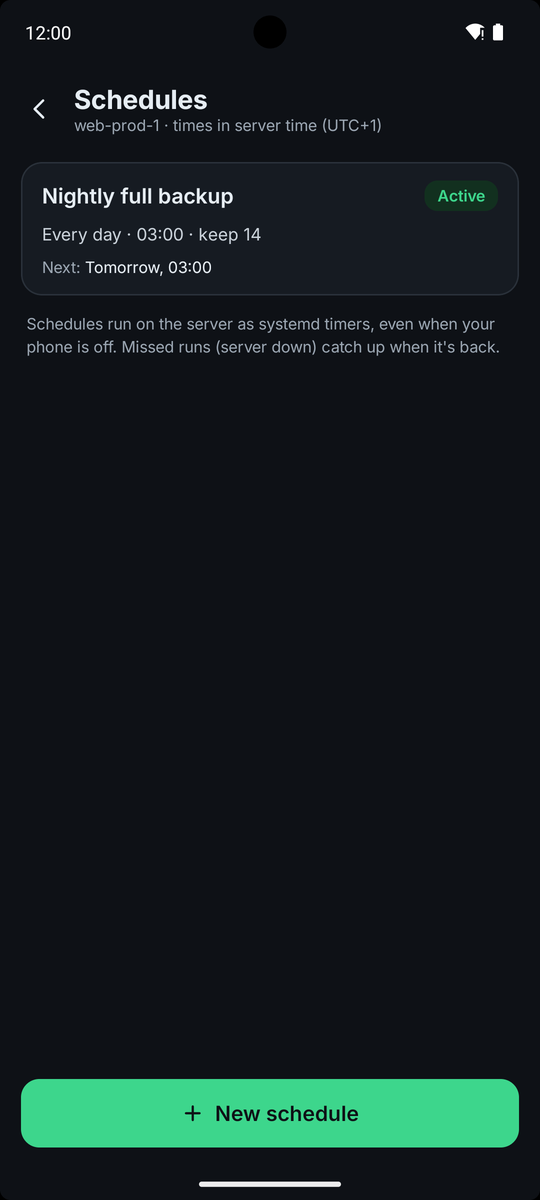
Schedules runs a workflow on the server by itself, for example a backup every night. Schedules are systemd timers on the server, so they run when your phone is off, and a run missed because the server was down catches up when it is back.
Tap New schedule, start from a ready-made backup or pick any workflow that can be scheduled, and fill it in. The server works out the next run times. The settings are fixed when you create the schedule and used for every run. Secrets are stored on the server, readable only by root. A schedule cannot save to the phone.
Open a schedule to see its recent runs, Run now, pause or resume it, edit it or delete it. If the timer is missing on the server, the schedule says so and you can reinstall it.
7. Alerts for scheduled jobs
Settings → Scheduled jobs → Job alerts makes the app look at job results in the background and notify you. Choose how often to check and when to be told: when a job Fails, when it Doesn't run (an expected run is missing for over 2 hours), or when it Succeeds.
Servers whose key needs your fingerprint are only checked when you open the app. Checks use a short SSH connection.