Running workflows
A workflow is a list of steps VpsPilot runs on your server over SSH. You see what it will do before it does it. This guide follows one run from start to finish and ends with the list of built-in workflows.
1. Choose a workflow
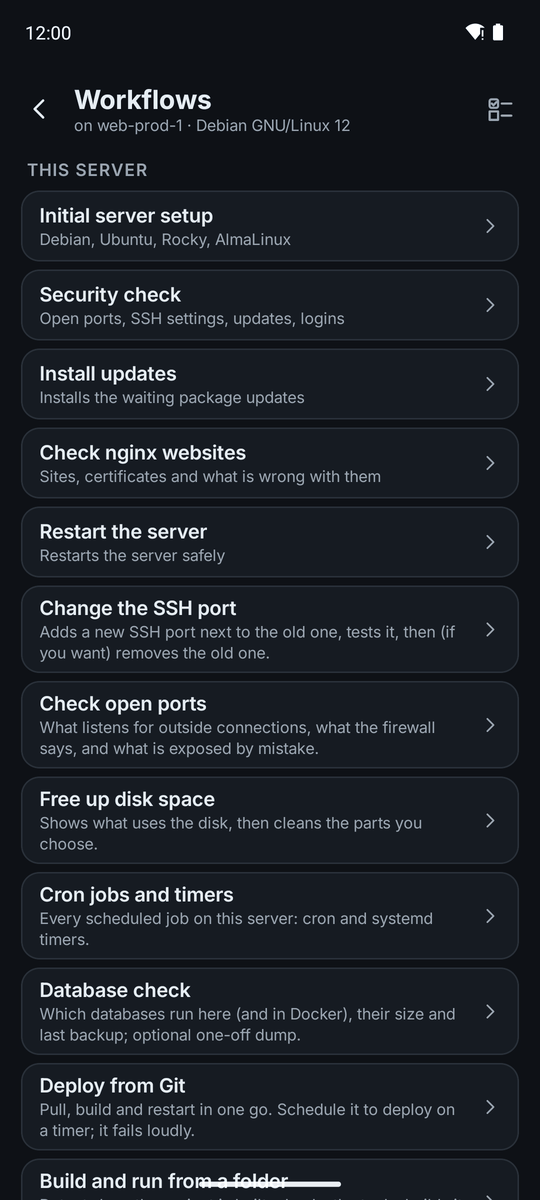
On the server's home screen, tap Workflows. The list has This server, Set up, your own recipes under My recipes (with a Manage link) and More, which holds Between servers and Schedule a workflow. Back up opens the backup screens. The system the server runs is shown under the title.
Some rows carry a note, such as Done 21 Oct on the setup workflow or 3 to fix on the security check.
2. Fill in the form
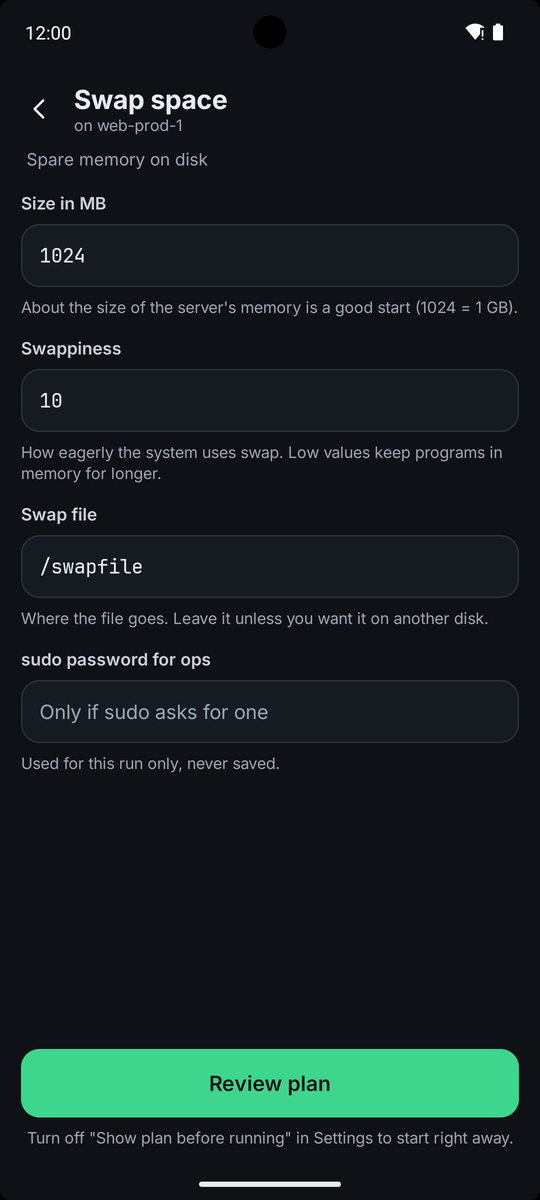
Each workflow asks only for what it needs: text, numbers, switches, choices, folders. Defaults are filled in, and a field that does not fit says so before you can go on.
If a step needs root and your account is not root, the form has a sudo password field. It is used for this run only and never saved. Tap Review plan to go on.
3. Read the plan
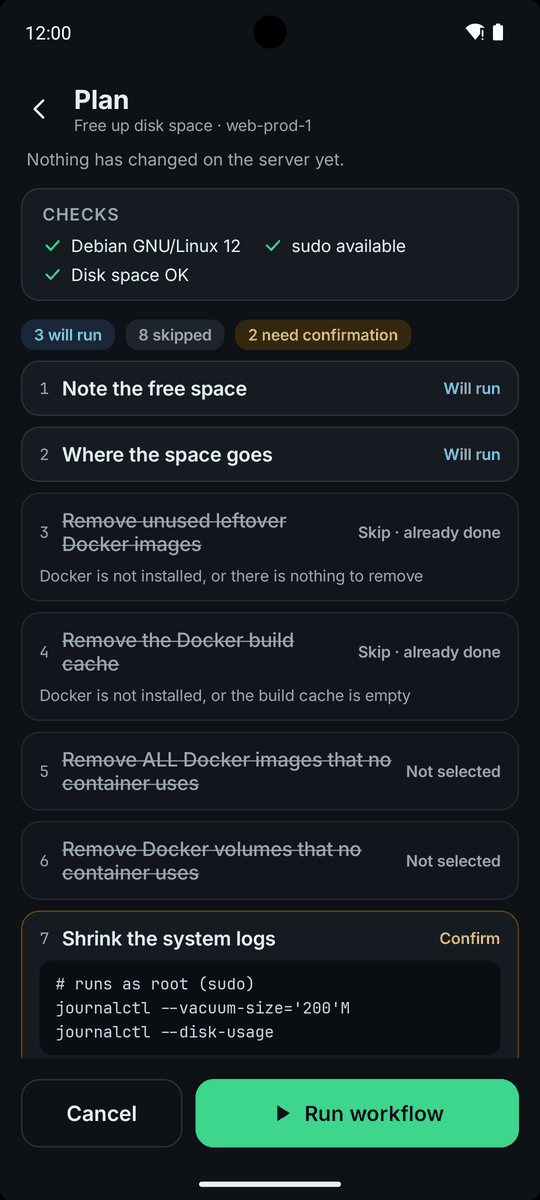
The plan connects to the server and changes nothing. Built-in workflows only read at this stage. For your own recipes, that depends on the check, preview and guard you write. It shows the checks (system, root access, and anything the workflow needs) and every step with a label: Will run, Will verify, Confirm, Skip · already done or Not selected. A step with a preview shows what the server looks like now.
If a step cannot work, for example a name that is taken or a port that is in use, the plan says why and Run workflow is blocked.
You can turn the plan off with Settings → Show plan before running. Risky steps still ask before they run.
4. Confirm risky steps
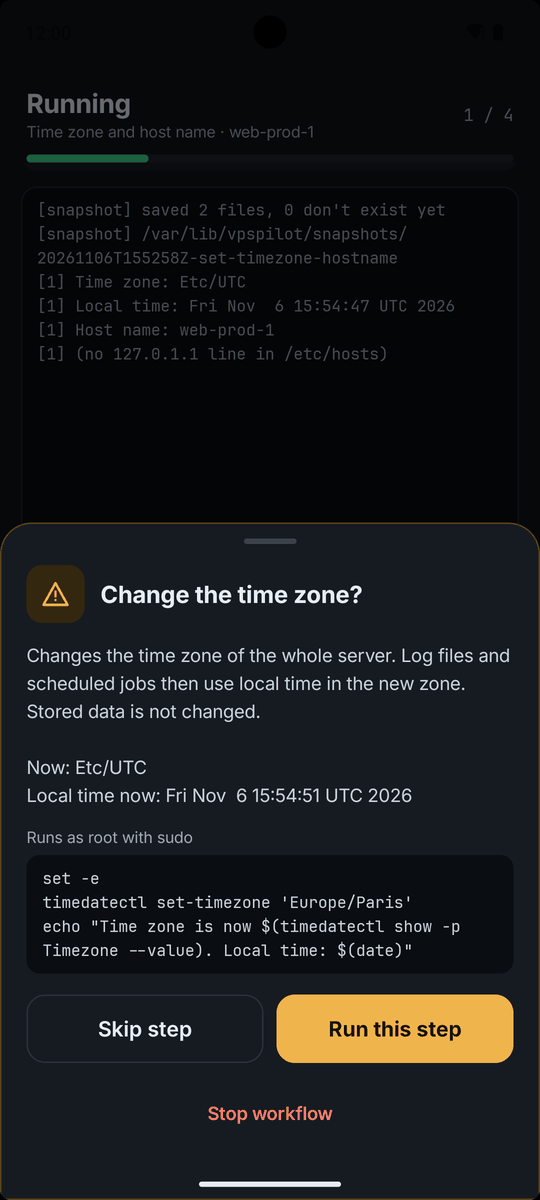
Steps the workflow's author marks as risky, usually those that could lock you out or remove data, stop and show what they will do, the exact command, and whether it runs as root. This happens even when the plan is off. Other steps run without asking, including some that install packages or add users, so read the plan.
Choose Run this step, Skip step or Stop workflow. A step that depends on a skipped step does not run.
5. Watch the run
The run screen shows each step as it goes. Tap Show output on a step to read what it printed. A step whose check says it is already done is skipped, so steps with a check are safe to repeat.
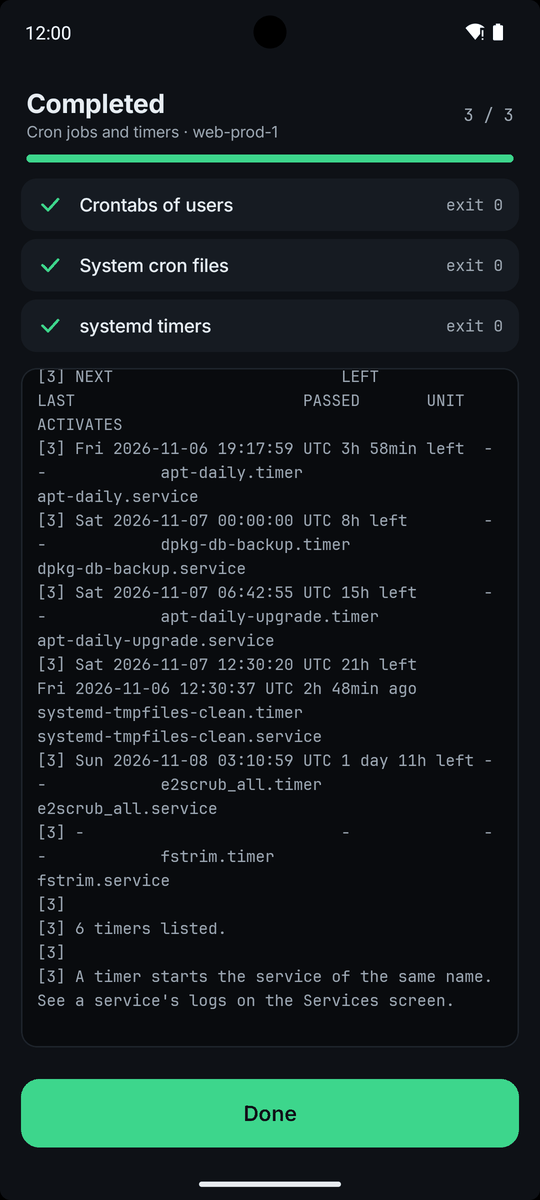
If the connection drops, the run is marked Interrupted. Reconnect and continue: each step's check runs again and steps already done are skipped. A step with no check runs again. The result is Completed, Completed with problems, Failed, Stopped, Cancelled or Interrupted. Runs are listed under History, where you can copy the log or run it again.
6. Snapshot and undo
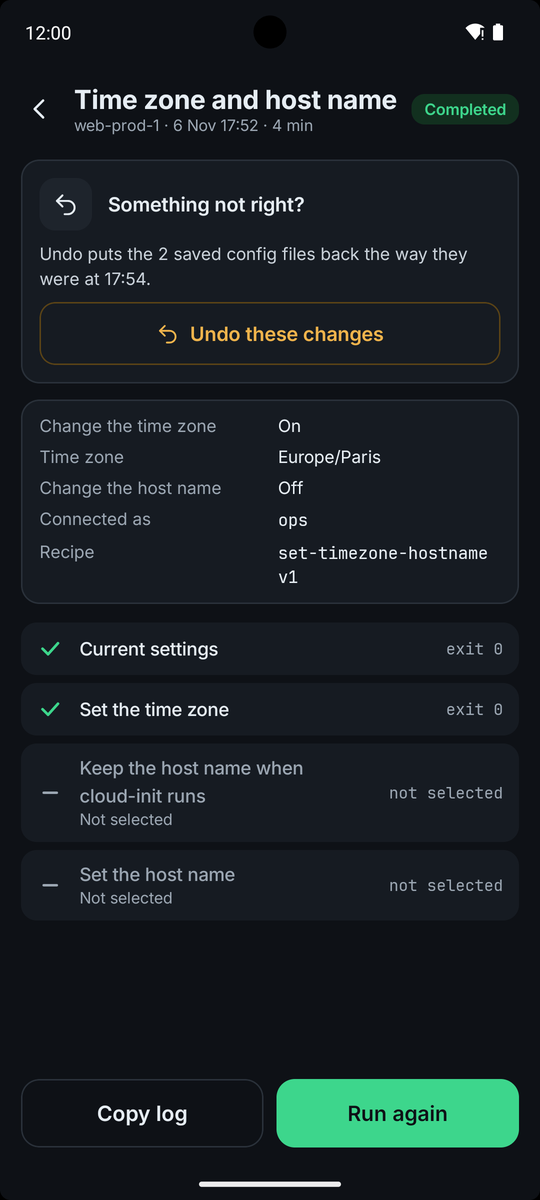
A workflow that writes configuration files can save a snapshot first. The plan has a Save a snapshot first switch: on by default when the workflow has risky steps, off when it has none. The snapshot copies the files the workflow will change, with owner, mode and checksum. Files a workflow marks as secret, such as token files, are never copied. Any other listed file is copied whole, including passwords inside it, and kept where only root can read it.
After the run, Undo these changes puts the files back, checks them and reloads the service. If an undo would change your account's login keys or sudo rule, the app warns you and asks you to confirm that you can still log in another way. It refuses to restore login keys that don't contain this phone's key when it can check them. For SSH settings it checks that sshd is listening and puts the files back if not. Firewall changes get no extra question, so test a new login before you close this one. Files the run created are removed, except ones a package owns, which stay as they are. The app also lists what an undo does not take back, such as users and packages the workflow added.
Snapshots live on the server in /var/lib/vpspilot/snapshots, where only root can read them. Find them under History → Snapshots, where you also choose how many to keep. When a new snapshot is saved, or you change the limit, the app deletes those over your limit (default 10) and any older than 90 days. Nothing is deleted on the server by itself.
Every built-in workflow
Grouped by the category each recipe declares. In the app, backups are started from Backups, and linking, transferring and migrating from Workflows → Between servers. The rest are in the Workflows list.
Setup
- Add a user
- With your key, optional sudo
- Automatic updates
- Installs security updates by themselves.
- Check nginx websites
- Sites, certificates and what is wrong with them
- Docker
- Docker Engine and Compose
- Docker waits for its disk
- Starts Docker only when its data disk is mounted
- Enable firewall
- Blocks incoming traffic except SSH (and web ports if you want them).
- Harden SSH
- Turns off password logins; keys keep working.
- Initial server setup
- Updates, admin user with your key, firewall, fail2ban, automatic security updates.
- Install fail2ban
- Blocks addresses that keep guessing SSH passwords.
- Install nginx
- The nginx web server, started and ready; opens ports 80 and 443 if a firewall runs.
- Install updates
- Installs the waiting package updates
- Keep Docker from updating
- Stops updates from restarting your containers
- Manage fail2ban
- Jails, ban times and the addresses never banned
- Renew certificates
- Renews the Let's Encrypt certificates (certbot)
- Restart the server
- Restarts the server safely
- Security check
- Open ports, SSH settings, updates, logins
- Swap space
- Spare memory on disk
- Unban an IP address
- Lets a blocked address in again
- Website redirect and security headers
- Send HTTP visitors to HTTPS and add browser security headers to an nginx site.
- Website with HTTPS
- nginx site + free certificate (Let's Encrypt)
Security
- Change the SSH port
- Adds a new SSH port next to the old one, tests it, then (if you want) removes the old one.
- Check open ports
- What listens for outside connections, what the firewall says, and what is exposed by mistake.
- Review logins
- Current sessions, recent logins and failed attempts by address.
- SSH keys
- See which keys can log in, add a key, remove a key.
Maintenance
- Cron jobs and timers
- Every scheduled job on this server: cron and systemd timers.
- Database check
- Which databases run here (and in Docker), their size and last backup; optional one-off dump.
- Free up disk space
- Shows what uses the disk, then cleans the parts you choose.
- Health report
- Problems on this server in plain English: failed services, memory kills, full disks, time and more.
- Kernel and restart status
- Which kernel runs, which is installed, whether a restart is needed and why.
- Test a backup restore
- Checks a backup file end to end in a temporary folder, without touching live data.
- Time zone and host name
- Set the server's time zone and its name.
Monitoring
- Website up-check
- Checks sites and certificates and fails loudly. Schedule it, for example every 15 minutes, from Schedules.
Docker
- Create a swarm
- Make this server the first manager of a Docker swarm and get the join tokens.
- Install Portainer
- A web panel for Docker, on one server or on a swarm.
- Join a swarm
- Add this server to a Docker swarm as a worker or a manager.
- Leave a swarm
- Take this server out of a Docker swarm, with a warning if it is a manager.
- Manage a swarm node
- Promote, demote, drain or activate a node, or remove one that is down.
- Swarm status
- Nodes, managers, majority (quorum) and services of a Docker swarm.
Deploy
- Build and run from a folder
- Detects how the project is built, checks the tools, builds it as the folder owner.
- Deploy from Git
- Pull, build and restart in one go. Schedule it to deploy on a timer; it fails loudly.
- Get code from Git
- Download or update a repository in a folder; private ones with a deploy key or token.
- Git login on this server
- Save a Git host token on this server so git can read private repositories on its own; see or remove it later. GitHub, GitLab, Forgejo / Gitea or any https host.
Backup
- Databases backup
- MariaDB, MySQL and PostgreSQL dumps (auto-detected) in one encrypted archive.
- Files backup
- Selected folders in one encrypted archive, with owners, permissions and ACLs.
- Full backup
- Folders, databases, package list, cron jobs and enabled services in one encrypted archive.
- Restore a backup
- Restore files, databases, packages, cron jobs and services from a VpsPilot backup, after a preview.
Between servers
- Link servers
- Lets this server log in to another one with its own key, for transfers, migrations and backups. Your phone's key is never copied.
- Migrate server
- Move sites, databases, accounts and services to a linked server, then check everything on the new server.
- Transfer files
- Copy folders directly to another server that this one is linked to.
- Unlink servers
- Removes the link key and, when nothing else uses it, the link account on the other server.